
When data engineers experiment in cloud platforms like Databricks, Azure, or AWS, every action—running a query, creating a cluster, even leaving one idling—incurs cost. That’s fine in production, but for continuous learning and pipeline design, it’s unsustainable.
By contrast, with MinIO, Airflow, and Delta-RS, you can emulate the key elements of a modern data lakehouse locally — MinIO for S3-compatible object storage, Airflow for orchestration, and Delta-RS for local Delta Lake ACID transactional integrity.
- MinIO provides a full S3 API, meaning any tool that speaks S3 (like SQL Server, Spark, or Pandas) can interact with it exactly as it would with AWS.
- Airflow gives you production-grade orchestration locally—your DAGs can later be ported to Databricks, Azure Data Factory, or MWAA.
- delta-rs implements Delta Lake’s transaction log logic without needing Databricks’ runtime. You get ACID tables, time travel, and schema enforcement locally.
Together, this trio allows you to prototype end-to-end data pipelines at zero cost, then migrate those workflows into the cloud when they’re proven.
What Makes Delta-RS Different
Delta-RS is a Rust implementation of the Delta Lake protocol that brings ACID guarantees to data lakes without needing a JVM or a Spark cluster. With Python bindings, you can work with Delta tables from lightweight tools like pandas, DuckDB, or Polars, which makes it perfect for local labs and cost-controlled environments.
Why it stands out
- No JVM/Spark required: Native Rust core keeps setup simple and overhead low.
- Direct table control: Read, write, and manage Delta tables at a low level.
- Plays well with others: Interops with pandas, DuckDB, and Polars.
- Battle-tested: Used in production; APIs are stable.
- Core Delta features:
- ACID transactions for safe concurrent ops
- Time travel to query older table versions
- Schema evolution to handle column changes
- Runs anywhere: Works with S3, ADLS Gen2, and other object stores (or MinIO locally).
Practical use cases
- Low-cost ingestion into Delta format
- Hybrid pipelines mixing warehouse and lake data
- High-speed analytics when paired with engines like Polars or DuckDB
Part 1: MinIO — Local S3 Storage
[Data Sources]
↓
MinIO → (Raw object storage: CSV, Parquet, JSON, etc.)
↓
delta-rs → (ACID layer, schema management, versioned Delta tables)
↓
Polars / DuckDB → (Query, transform, aggregate — analytical layer)
↓
SQL Server / Power BI → (Consumption, dashboards, reporting)
↓
Airflow → (Orchestration spanning all stages)
MinIO Setup
- Download the Community Edition
Invoke-WebRequest -Uri "https://dl.min.io/server/minio/release/windows-amd64/minio.exe" -OutFile "D:\AppDev\MinIO\minio.exe" - Enable HTTPS on MinIO (local, trusted) ```bash choco install mkcert -y mkcert -install
Install mkcert (creates a local CA and trusts it)
Make a cert for 127.0.0.1 and localhost
cd $env:USERPROFILE mkdir -Force .minio\certs | Out-Null cd .minio\certs mkcert 127.0.0.1 localhost
Rename to what MinIO expects
(mkcert created files like ‘127.0.0.1+1.pem’ and ‘127.0.0.1+1-key.pem’)
Get-ChildItem .pem | ForEach-Object { if ($_.Name -like “+-key.pem”) { Copy-Item $_.Name private.key -Force } elseif ($_.Name -like “.pem”) { Copy-Item $_.Name public.crt -Force } }
 - **Verify certs present**
```bash
dir $env:USERPROFILE\.minio\certs
- Step 1. Download the CLI (MinIO Client “mc”)
Invoke-WebRequest -Uri "https://dl.min.io/client/mc/release/windows-amd64/mc.exe" -OutFile "D:\AppDev\MinIO\mc.exe" - Verify it runs
D:\AppDev\MinIO\mc.exe --version
| Tool            | Purpose                                                                                                           |
| --------------- | ----------------------------------------------------------------------------------------------------------------- |
| **`minio.exe`** | The **server** — hosts the local S3-compatible object store and web Console.                                     |
| **`mc.exe`**    | The **client** — a command-line companion that talks to MinIO (or AWS S3) for administration and file operations. |
- Use mc (MinIO Client) to:
- Create users
- Apply bucket policies
- Mirror local folders to buckets (mc mirror)
- List, copy, or remove objects
From PS D:\AppDev\MinIO>
- Step 2. Create a dedicated user (access key/secret) for SQL1
./mc.exe admin user add local sqlreader "SecretKey321" - Step 3. Point mc at your running MinIO (add alias).
./mc.exe alias set local https://127.0.0.1:9010 sqlreader SecretKey321
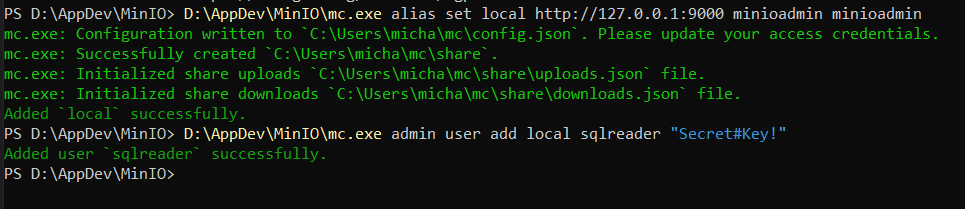
SQL Server’s S3 connector only accepts alphanumeric access/secret keys1. Symbols like # and ! are not supported, and this can surface as “file does not exist.” Microsoft’s doc states: “Access Key ID and Secret Key ID must only contain alphanumeric values.”
- Step 4. Grant that user permission to the bucket
./mc.exe admin policy attach local readwrite --user sqlreader

- Step 5. Confirm sqlreader can connect
D:\AppDev\MinIO\mc.exe alias set sql http://127.0.0.1:9010 sqlreader "SecretKey321"
D:\AppDev\MinIO\mc.exe ls sql

- Step 6 — Mirror your Parquet folder into the bucket
./mc.exe mirror D:\AppDev\nyctaxi\nyctaxi-pipeline\data_out sql/nyctaxi-pipeline/data_out

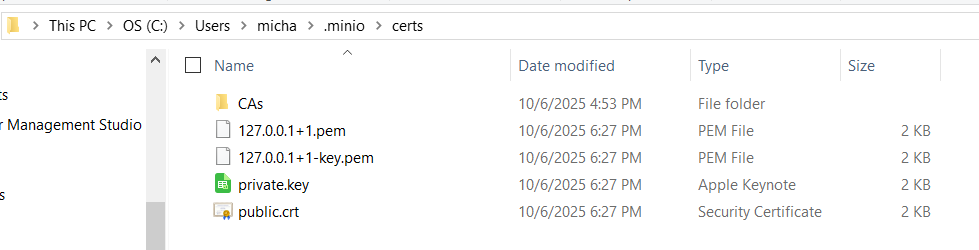
What the MinIO Console shows
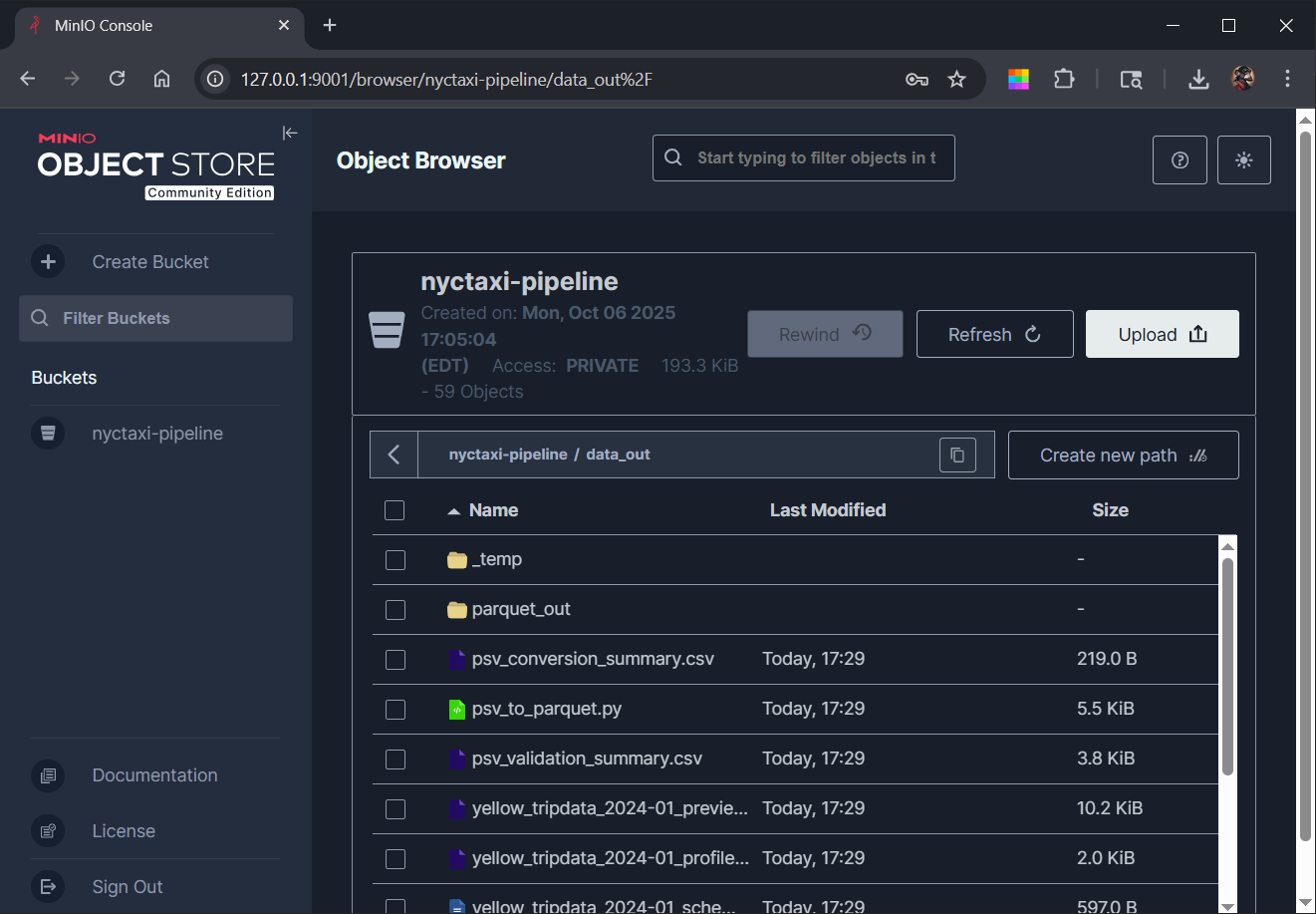
- MinIO certs structure and file names
%USERPROFILE%\.minio\certs\
 ├── CAs\         ← mkcert’s root CA folder
 ├── public.crt
 ├── private.key
- Step 7. verify the Parquet file path exists
./mc.exe ls local/nyctaxi-pipeline/data_in
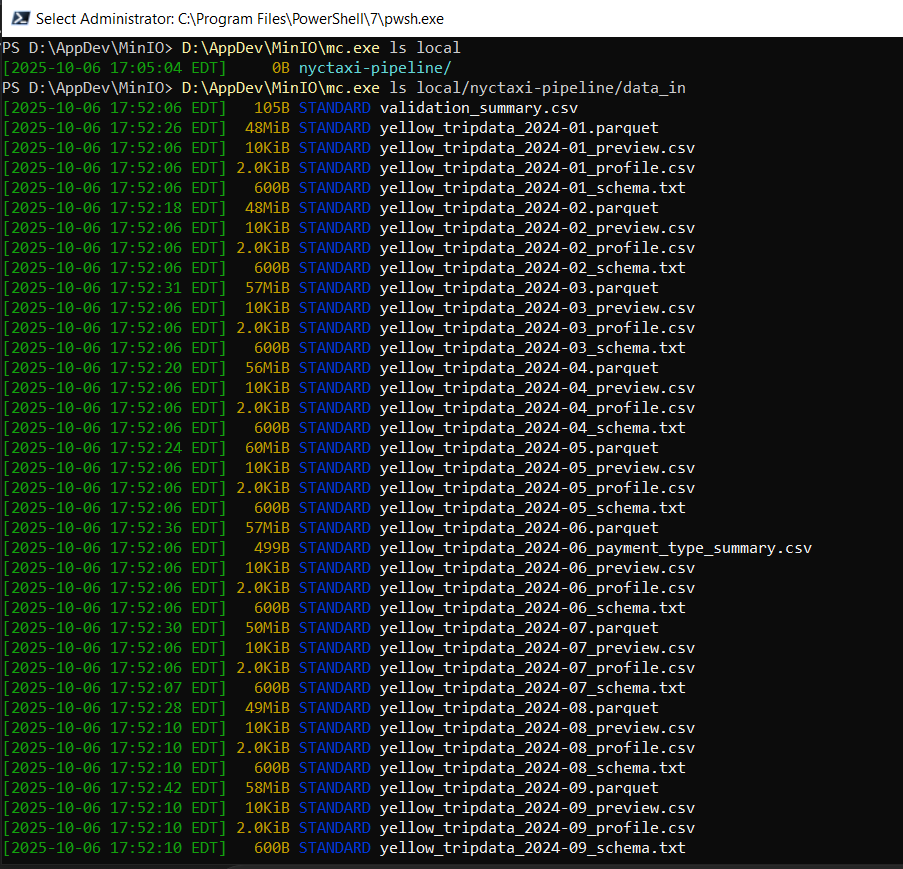
🧩 Why a “folder”, not a Parquet file
- Object storage (MinIO, AWS S3, etc.) doesn’t really have folders — it just has object keys.
- MinIO stores an object with that key.
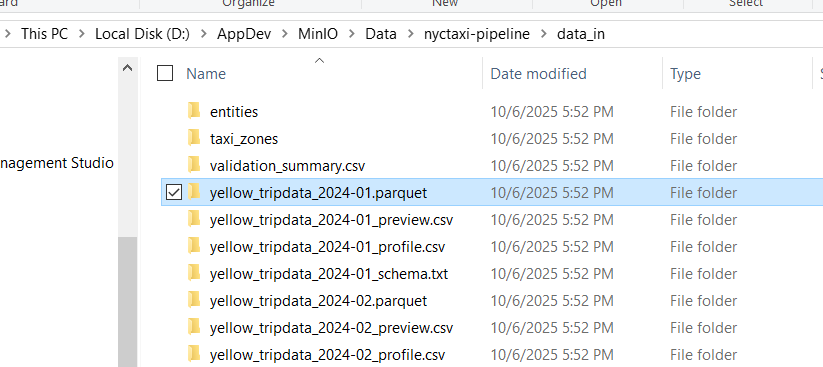
- When I used mc mirror, it mirrored the local filesystem, and that included:
D:\AppDev\nyctaxi\nyctaxi-pipeline\data_in\yellow_tripdata_2024-01.parquet
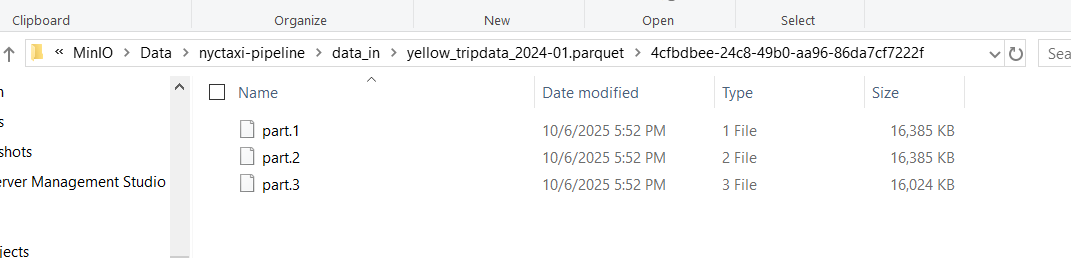
Because MinIO can’t store a real file stream under a key that matches an existing prefix, it made a pseudo-directory and split the data into multipart chunks:
yellow_tripdata_2024-01.parquet/
   ├── 4cfbdbee-24c8-49b0-aa96-86da7cf7222f/
       ├── part.1
       ├── part.2
       ├── part.3
Those part.* files are the object’s internal chunks — exactly how MinIO handles multipart uploads for large files. From MinIO’s perspective, this is still one logical object with key:
nyctaxi-pipeline/data_in/yellow_tripdata_2024-01.parquet
… and SQL Server (via S3 API) will treat it as a single Parquet file.
- Step 8. Trust the mkcert root CA for the SQL Server service
- Press ⊞ Win, type mmc.exe, run as Admin.
- File → Add/Remove Snap-in… → Certificates → Add → Computer account → Next → Finish → OK.
- That will load the Certificates (Local Computer) snap-in so you can continue with the import.
- Expand Trusted Root Certification Authorities → Certificates.
- Right-click Certificates → All Tasks → Import…
- In the file picker, set All Files and select mkcert’s root:
- It’s usually at C:\Users\user_name\AppData\Local\mkcert\rootCA.pem
- If unsure, run mkcert -CAROOT to see the exact folder.
Finish the import (you should now see mkcert development CA listed).
Restart the SQL Server service so it picks up the new trust.
🚀Launch MinIO
cd D:\AppDev\MinIO
.\minio.exe server D:\AppDev\MinIO\data --console-address ":9011" --address ":9010"
SQL Server Configuration Steps
- Install PolyBase on Windows
https://learn.microsoft.com/en-us/sql/relational-databases/polybase/polybase-installation?view=sql-server-ver17
- Enable PolyBase in sp_configure:
EXEC sp_configure @configname = 'polybase enabled', @configvalue = 1; GO RECONFIGURE GO - Confirm the setting:
EXEC sp_configure @configname = 'polybase enabled';
CREATE EXTERNAL DATA SOURCE LocalS3
WITH (
    LOCATION = 's3://127.0.0.1:9010/nyctaxi-pipeline/',
    CREDENTIAL = sqlreader
);
- Create a database scoped credential with Basic Authentication
USE [nyctaxi]; GO IF NOT EXISTS(SELECT * FROM sys.database_scoped_credentials WHERE name = 'LocalS3Cred') BEGIN CREATE DATABASE SCOPED CREDENTIAL LocalS3Cred WITH IDENTITY = 'S3 Access Key', SECRET = 'sqlreader:SecretKey321'; END GO - Verify the credential name tied to LocalS3
SELECT ds.name, ds.location, c.name AS credential_name FROM sys.external_data_sources AS ds LEFT JOIN sys.database_scoped_credentials AS c ON c.credential_id = ds.credential_id WHERE ds.name = 'LocalS3'; - Update the data source location
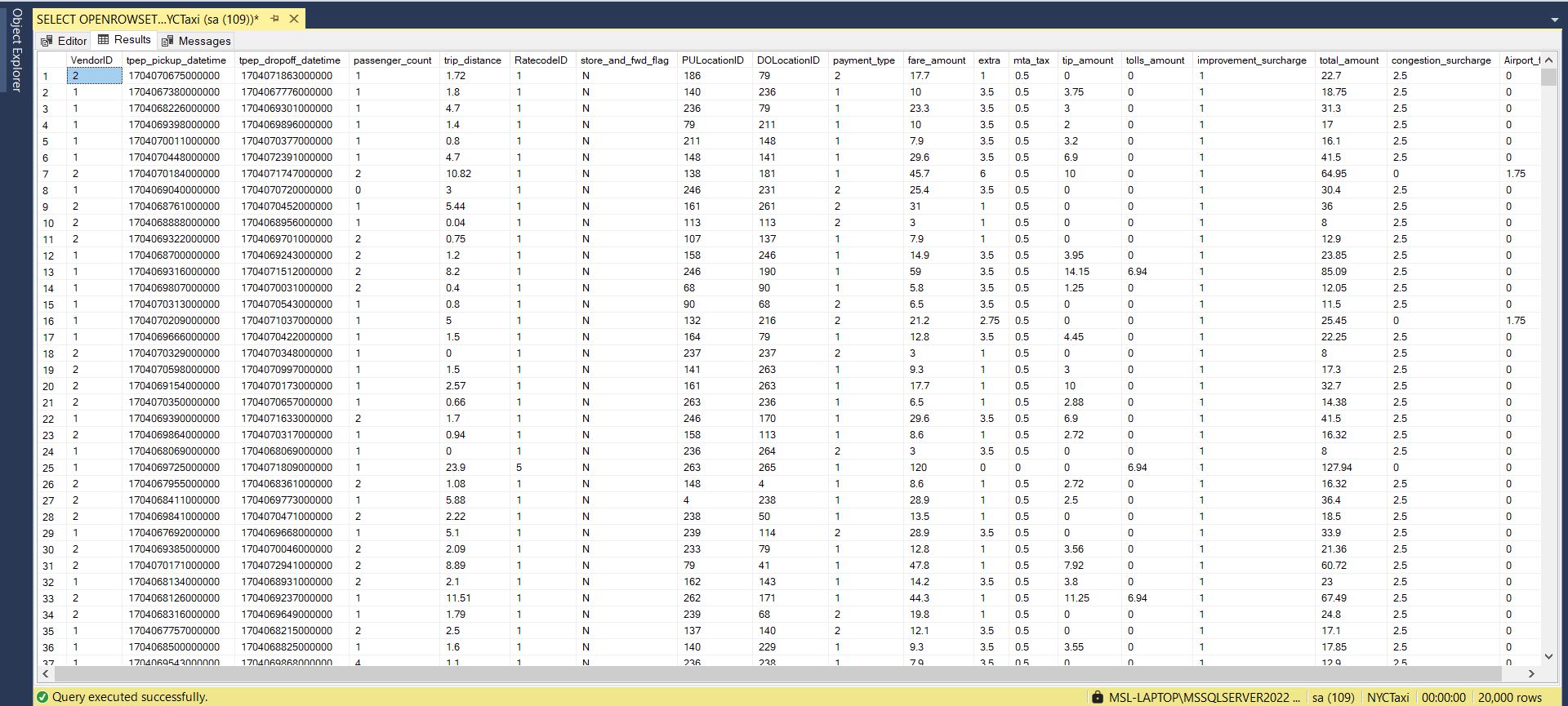
ALTER EXTERNAL DATA SOURCE LocalS3 SET LOCATION = 's3://127.0.0.1:9010/nyctaxi-pipeline/'; - Query the Parquet file
SELECT TOP (20000) *
FROM OPENROWSET(
  BULK 'data_in/yellow_tripdata_2024-01.parquet',
  DATA_SOURCE = 'LocalS3',
  FORMAT = 'PARQUET'
) AS s;
The End